Claude Connector Setup
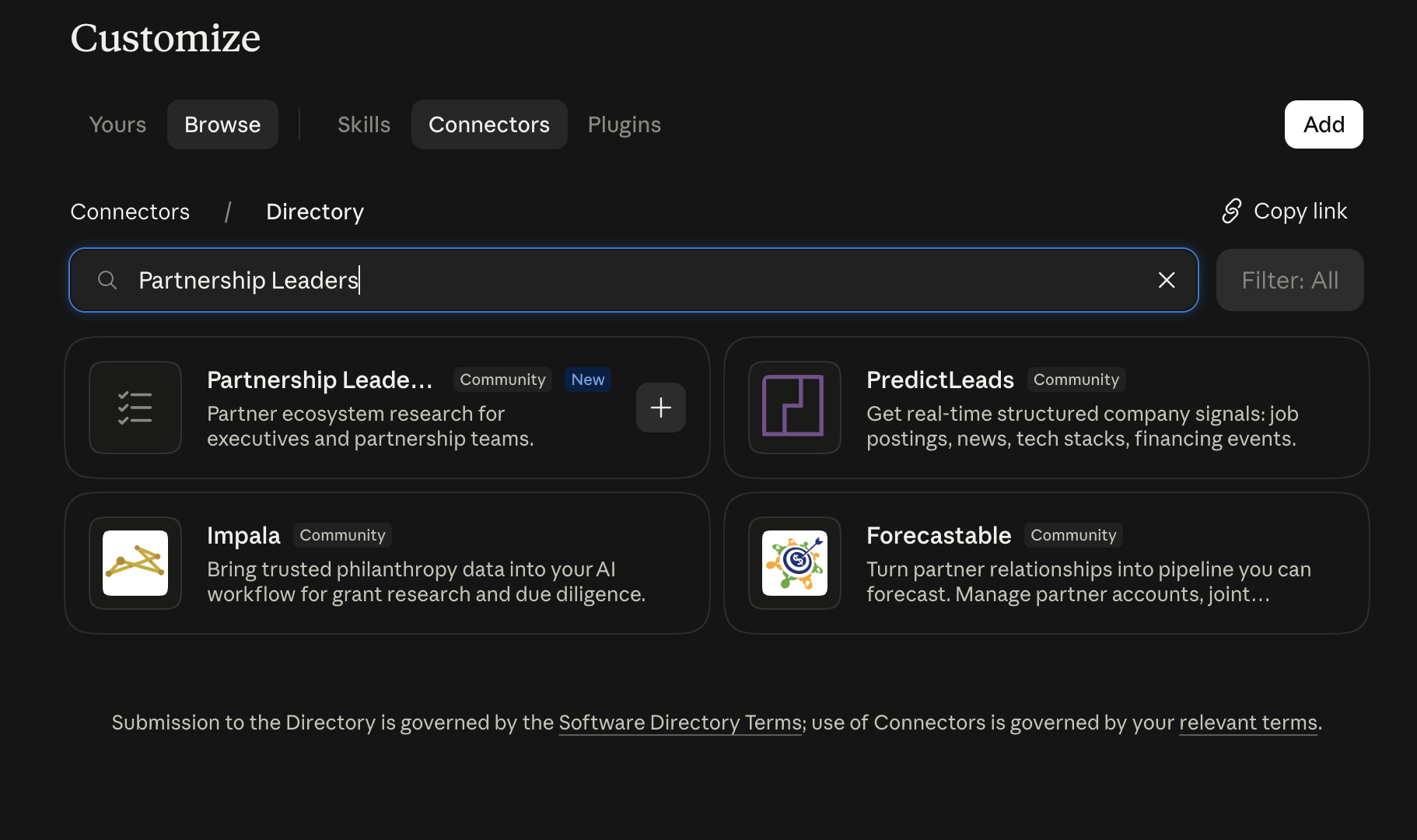
- Open Claude, then go to Customize and select Connectors.
- Search for Partnership Leaders Research.
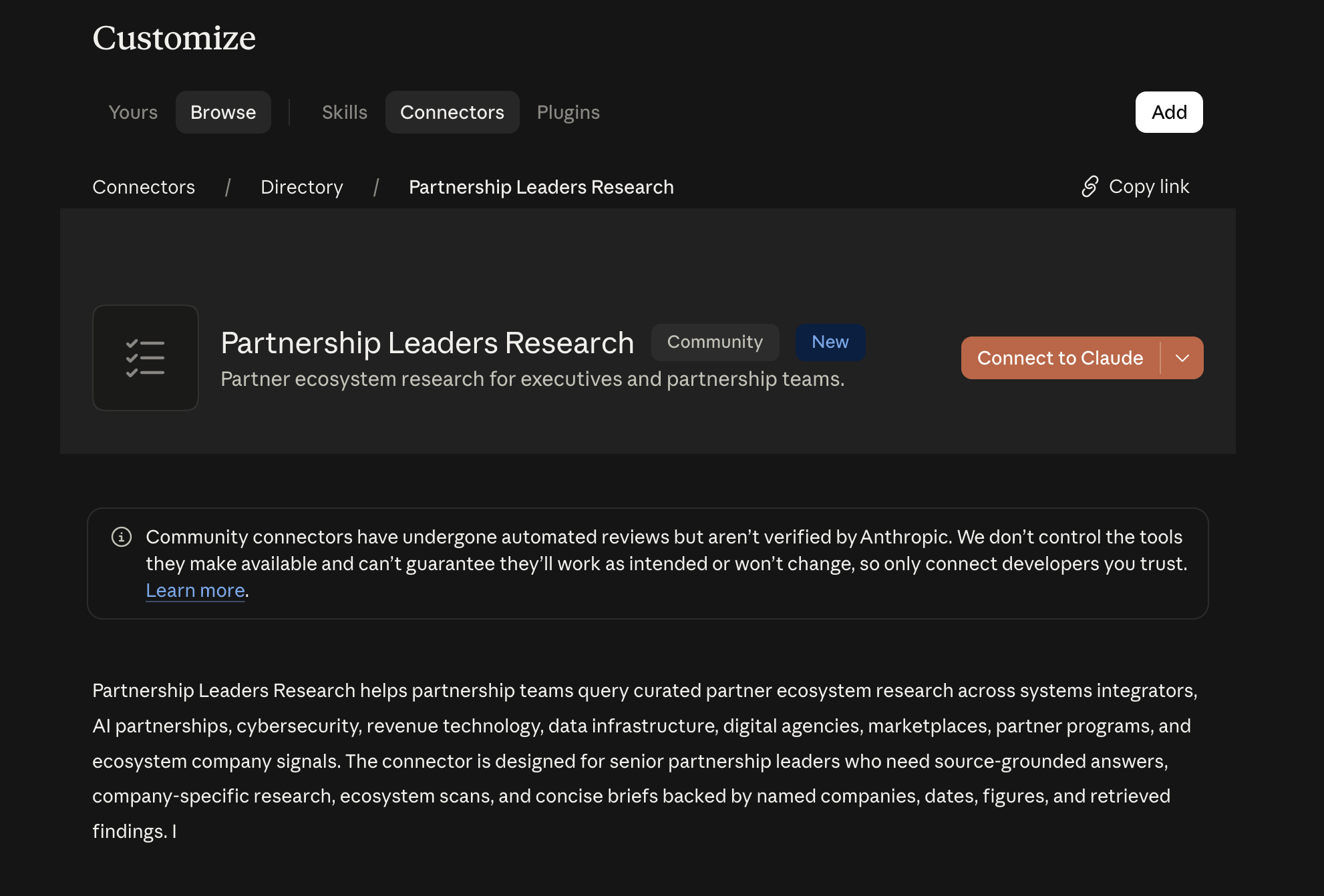
- Open the listing and click Connect to Claude.
Authorization
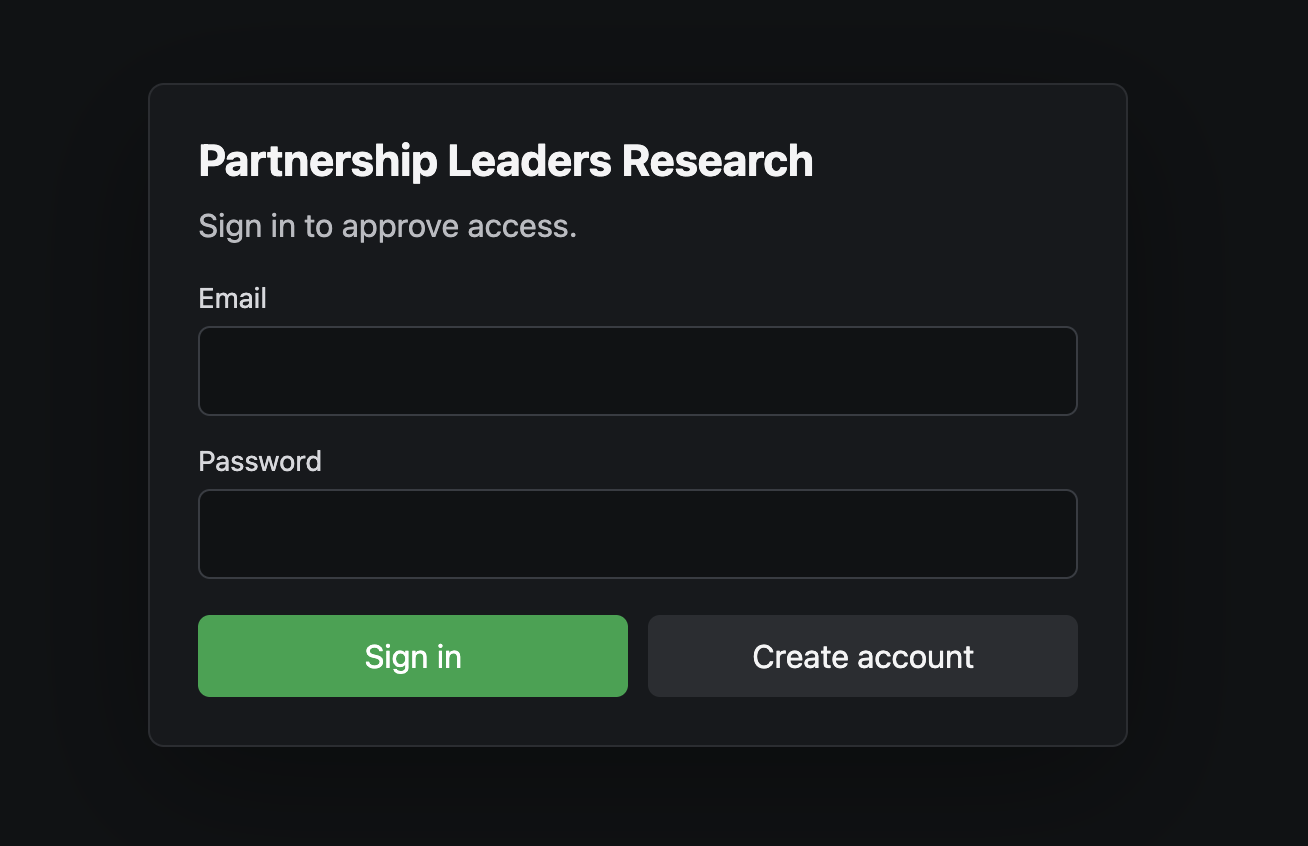
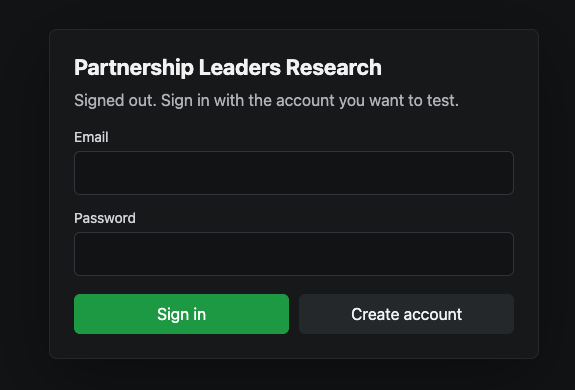
- On the authorization screen, enter your email address.
- Enter your desired password.
- Click Create account.
- If you already created an account before, use Sign in instead.
Email Verification
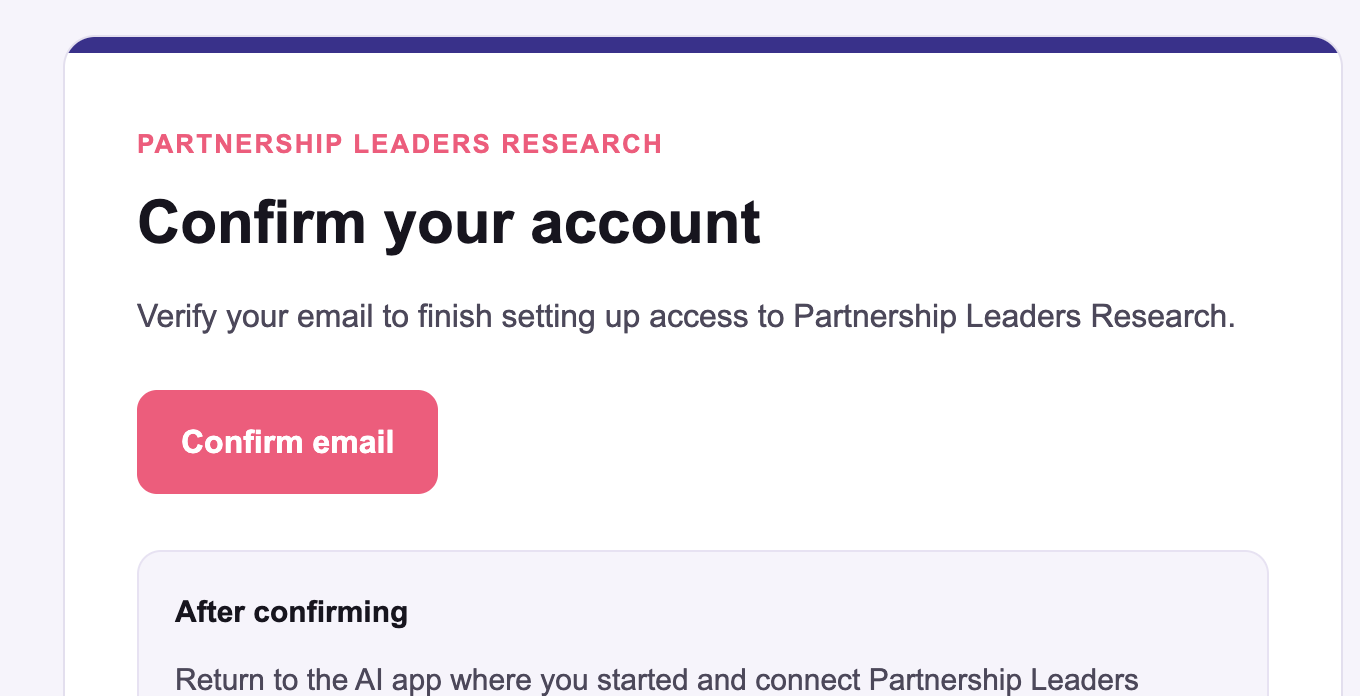
- After creating the account, check your inbox for the verification email.
- Click Confirm email.
- Return to the original authorization tab and click Approve.
- Keep the original connector or plugin tab open while confirming your email. If the authorization page expires, close that tab, return to the AI app, and start the connection again.
ChatGPT Plugin Setup
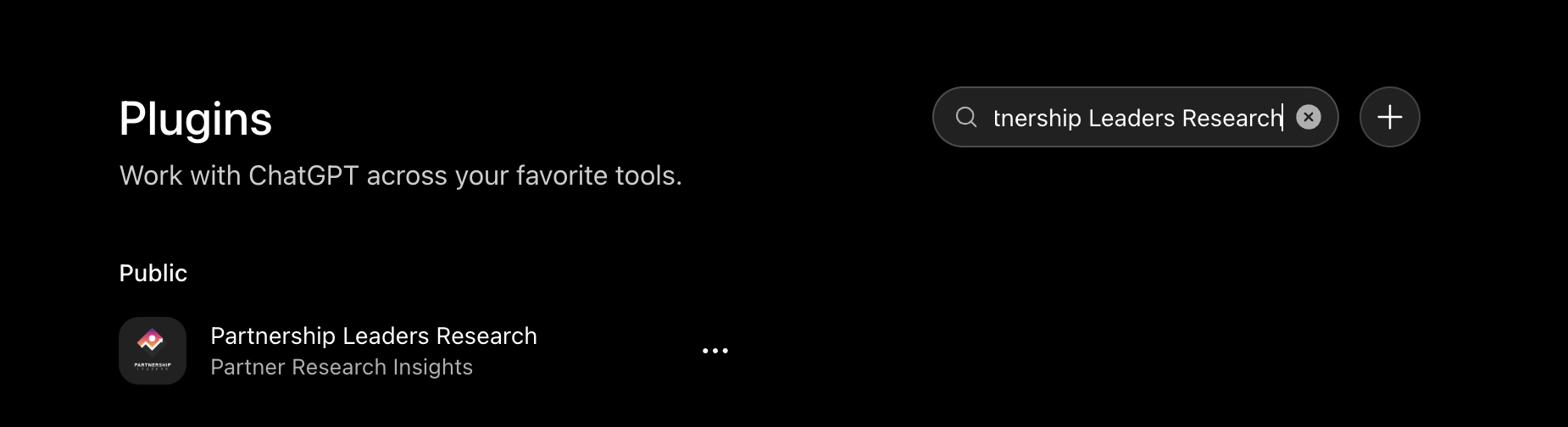
- Open ChatGPT, then go to Plugins.
- Search for Partnership Leaders Research.
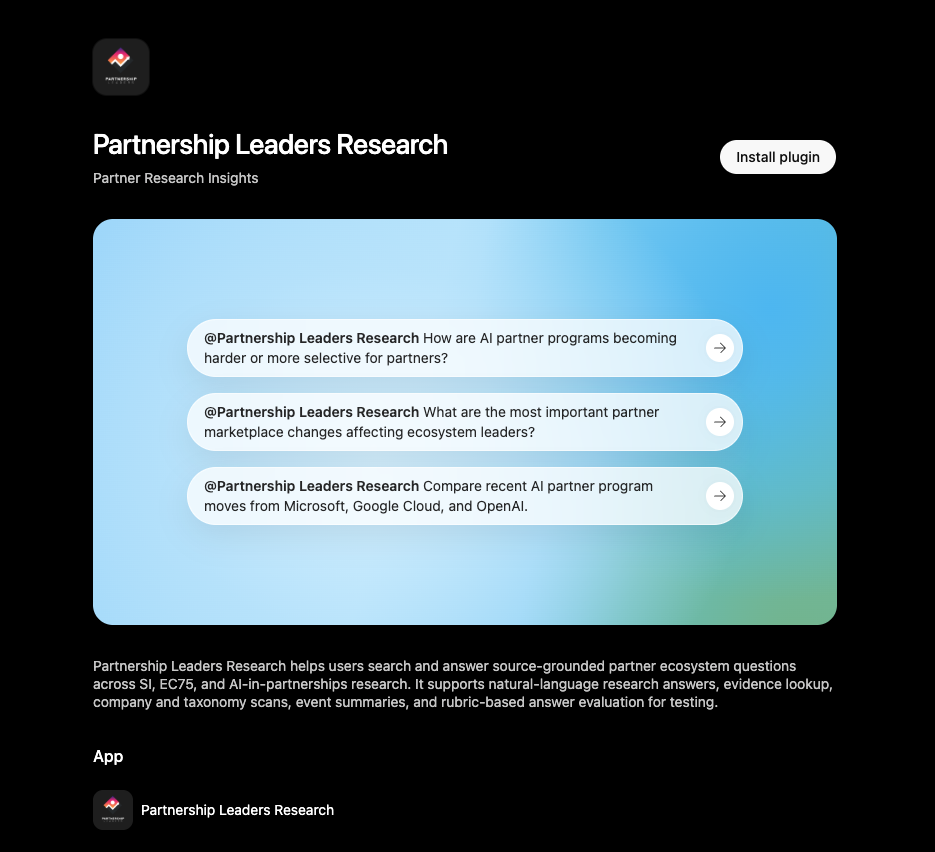
- Open the plugin and click Install plugin.
- Use the same account flow: enter your email, enter your desired password, click Create account, verify your email, then approve access.
ChatGPT Authorization
- When the authorization page opens, enter your email address and your desired password.
- Click Create account if you are new, or Sign in if you already have an account.
- If prompted, verify your email, return to the original plugin tab, and approve access.
- Keep the original plugin tab open while confirming your email. If the authorization page expires, close that tab, return to ChatGPT, and start the connection again.
Troubleshooting
If the authorization page expires
Close the expired authorization tab, return to Claude or ChatGPT, and click connect again to start a fresh authorization session.
If you do not receive the verification email
- Check spam or promotions folders.
- Confirm the email address was entered correctly.
- Try the create-account step again after a few minutes.
If the connector or plugin does not appear
Confirm you are searching in the correct area: Connectors for Claude, and Plugins for ChatGPT.